A 3D model in a slide
A model that the audience sees turn, and that you turn with the mouse while you speak. In a slide,
a 3D scene is a small web page next to the slide, shown by the demo:: tag of the slide themes.
What you'll get
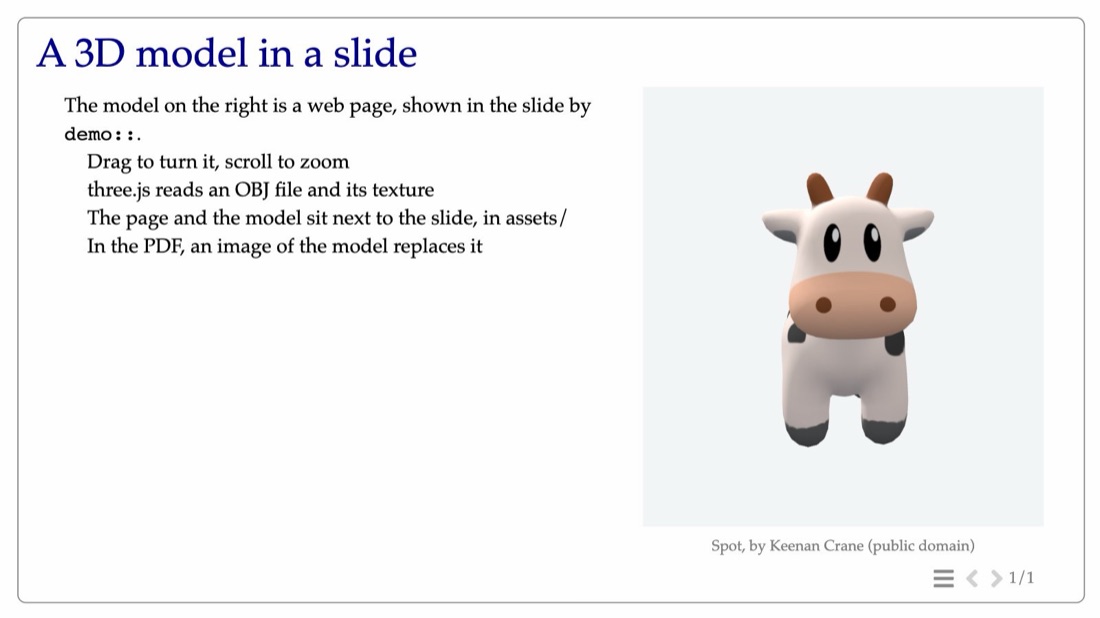
1. The slide
src/01_model/index.html.j2, in the layout side: the text on the left, the model on the right.
{% set layout = 'side' %}

= A 3D model in a slide

The model on the right is a web page, shown in the slide by `demo::`.

* Drag to turn it, scroll to zoom
* three.js reads an OBJ file and its texture
* The page and the model sit next to the slide, in assets/
* In the PDF, an image of the model replaces it

media::
demo::assets/viewer/index.html(.live)
img::assets/spot.jpg(.still)
credit:: Spot, by Keenan Crane (public domain) ::
::

<style>
  /* the demo on screen, its image in the PDF (printed by the browser) */
  @media screen { .still { display: none; } }
  @media print { .live { display: none; } }
</style>
demo:: is a macro of the slide themes: it writes an <iframe> of the page, sized by the layout.
Its classes .live and .still choose what is shown on screen and in the PDF (step 3).
2. The page of the model
Next to the slide, in src/01_model/assets/:
assets/
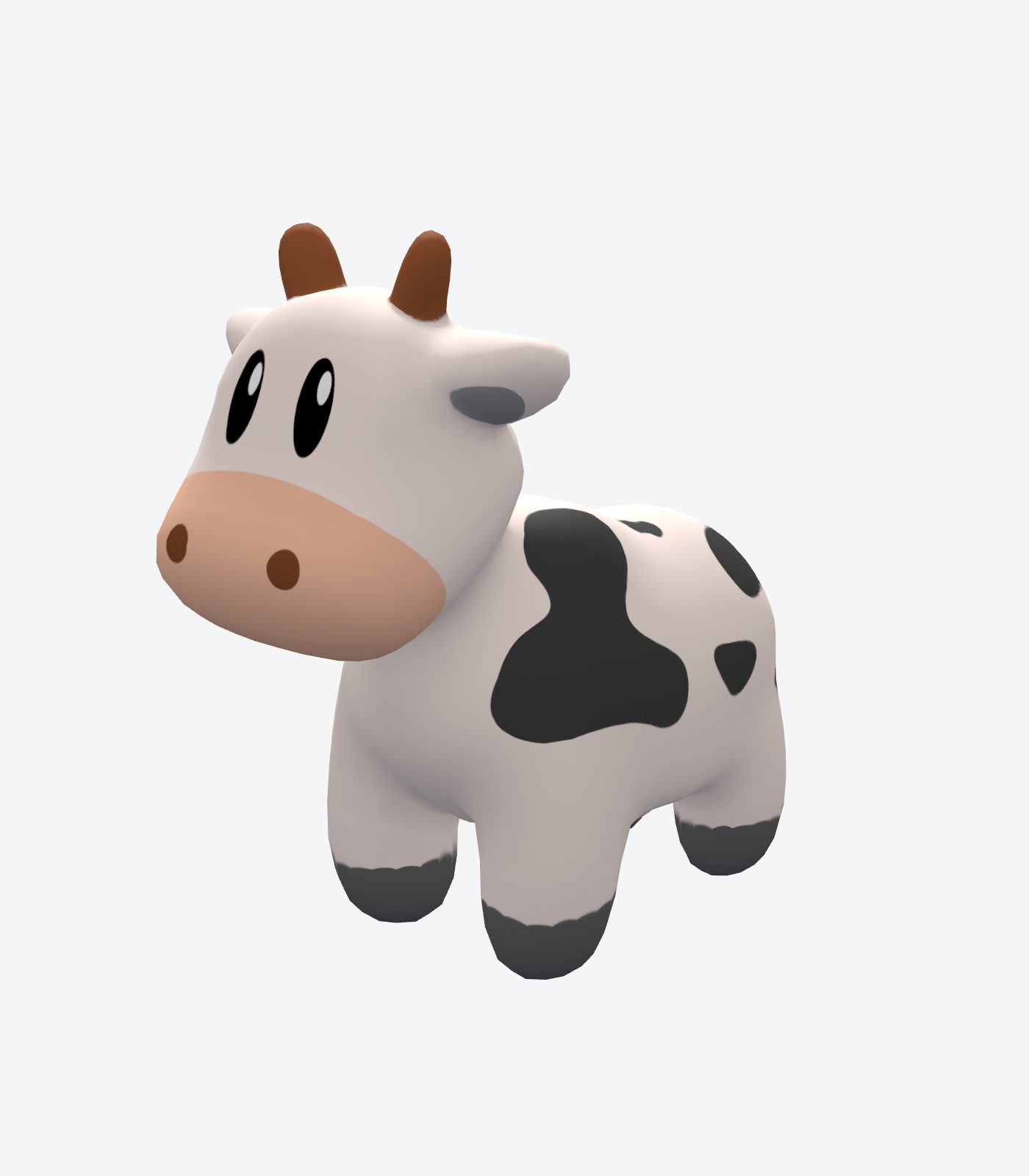
  spot.jpg             an image of the model, for the PDF (step 3)
  viewer/
    index.html         the page below
    spot.obj           the model
    spot.png           its texture
viewer/index.html loads three.js and its loader of OBJ files, turns the
model by itself until the first drag, and lets you turn and zoom it with the mouse:
<!DOCTYPE html>
<html lang="en">
<head>
<meta charset="utf-8">
<title>Spot</title>
<style>
  html, body { margin: 0; height: 100%; overflow: hidden; background: #f4f5f7; }
  canvas { display: block; width: 100%; height: 100%; cursor: grab; }
</style>
<script type="importmap">
{ "imports": {
    "three": "https://cdn.jsdelivr.net/npm/three@0.160.0/build/three.module.js",
    "three/addons/": "https://cdn.jsdelivr.net/npm/three@0.160.0/examples/jsm/" } }
</script>
</head>
<body>
<script type="module">
// A 3D model, turned with the mouse: an OBJ file and its texture, shown by three.js.
import * as THREE from 'three';
import { OrbitControls } from 'three/addons/controls/OrbitControls.js';
import { OBJLoader } from 'three/addons/loaders/OBJLoader.js';

const renderer = new THREE.WebGLRenderer({ antialias: true, preserveDrawingBuffer: true });
renderer.setPixelRatio(window.devicePixelRatio);
document.body.appendChild(renderer.domElement);

const scene = new THREE.Scene();
scene.background = new THREE.Color(0xf4f5f7);
scene.add(new THREE.HemisphereLight(0xffffff, 0x8a8f99, 2.2));
const sun = new THREE.DirectionalLight(0xffffff, 2);
sun.position.set(2, 3, 2);
scene.add(sun);

const camera = new THREE.PerspectiveCamera(35, 1, 0.01, 100);
const controls = new OrbitControls(camera, renderer.domElement);
controls.enableDamping = true;
// settings in the address: index.html?spin=0 does not turn the model by itself
const params = new URLSearchParams(location.search);
controls.autoRotate = params.get('spin') !== '0';   // stops at the first drag
controls.addEventListener('start', () => { controls.autoRotate = false; });

const texture = new THREE.TextureLoader().load('spot.png');
texture.colorSpace = THREE.SRGBColorSpace;
// the PDF export of lhtml-site prints the slide once the model is drawn (window.__lhtmlReady)
let shown;
const drawn = new Promise((done) => { shown = done; });
window.__lhtmlReady = { version: 1, ready: () => drawn };

new OBJLoader().load('spot.obj', (model) => {
  model.traverse((child) => {
    if (child.isMesh) child.material = new THREE.MeshStandardMaterial({ map: texture, roughness: 0.7 });
  });
  model.rotation.x = -Math.PI / 2;      // the file has z up (Blender), three.js has y up
  model.updateMatrixWorld(true);
  // centered, and the camera at a distance that shows all of it
  const box = new THREE.Box3().setFromObject(model);
  const size = box.getSize(new THREE.Vector3()).length();
  model.position.sub(box.getCenter(new THREE.Vector3()));
  camera.position.set(-0.9, 0.35, -1).multiplyScalar(size * 1.2);   // in front, three-quarter view
  controls.target.set(0, 0, 0);
  scene.add(model);
  requestAnimationFrame(() => requestAnimationFrame(shown));
}, undefined, (error) => shown());   // no model: print the slide anyway

function resize() {
  renderer.setSize(window.innerWidth, window.innerHeight, false);
  camera.aspect = window.innerWidth / window.innerHeight;
  camera.updateProjectionMatrix();
}
window.addEventListener('resize', resize);
resize();
renderer.setAnimationLoop(() => { controls.update(); renderer.render(scene, camera); });
</script>
</body>
</html>
The files of the example: spot.obj, spot.png
and spot.jpg. To show your own model, change spot.obj and spot.png. A model from Blender has its z axis up:
keep the line model.rotation.x; remove it for a model with y up.
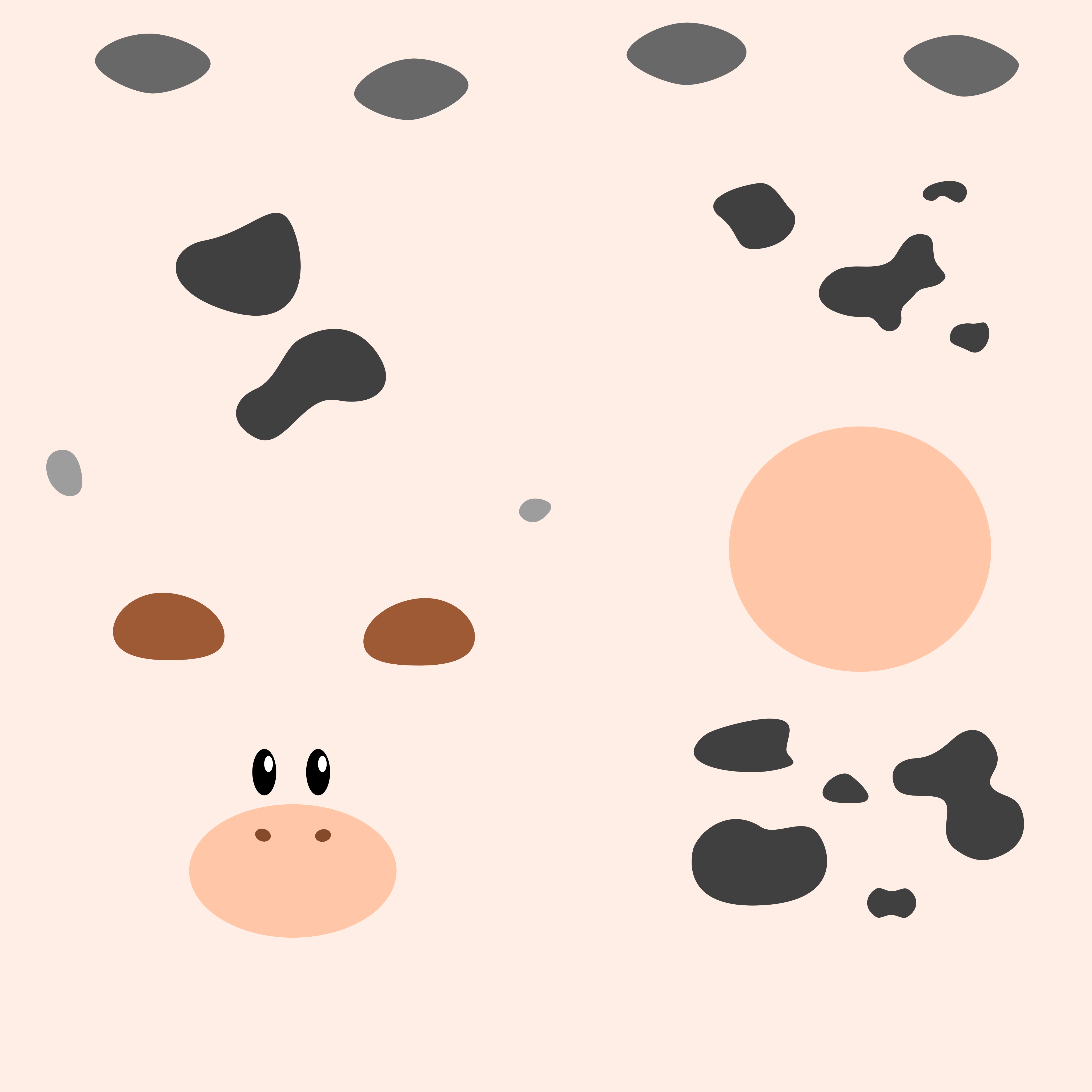
A browser refuses to read spot.obj from a page opened as a file (file://): the frame stays
empty. Show the talk with lhtml-site --serve, or from your web site. And three.js comes from
the web (jsdelivr): for a talk without internet, download three.module.js and the two files of
examples/jsm/ it uses, put them in viewer/, and change the two addresses of the importmap.
3. In the PDF: an image of the model
The PDF of slides-pdf cannot show a page that turns. The slide holds both, and a stylesheet
chooses: the demo on screen, the image in print (the PDF is printed by the browser):
@media screen { .still { display: none; } }
@media print { .live { display: none; } }
To make spot.jpg, take a screenshot of the viewer in your browser. Build both with two targets
(Your slides as a PDF):
targets:
  html: {theme: slides}
  pdf: {theme: slides-pdf}
The viewer also tells the export when the model is drawn (window.__lhtmlReady), so that the
export waits for it when the page can load it.
Without demo::, an iframe written by hand
demo:: is a shortcut for an <iframe> that the layout sizes. Write the <iframe> yourself when you
want to choose: its size and its place on the slide, a frame or a shadow, its attributes
(allow="fullscreen", a title for screen readers), or settings in its address. LHTML keeps HTML
as written. The second slide of the example:
= The same model, in an iframe written by hand

An `<iframe>` is HTML: LHTML keeps it as written, with its size, its place and its attributes.

<iframe class="live" src="../01_model/assets/viewer/index.html?spin=0" title="Spot, a 3D model"
        allow="fullscreen"></iframe>
<img class="still" src="../01_model/assets/spot.jpg" alt="Spot, a 3D model">

<style>
  .live, .still { display: block; height: 620px; margin: 30px auto 0; border: 0; border-radius: 16px; }
  .live { width: 1400px; box-shadow: 0 4px 24px rgba(0, 0, 0, .15); }
  /* the page on screen, its image in the PDF (printed by the browser) */
  @media screen { .still { display: none; } }
  @media print { .live { display: none; } }
</style>
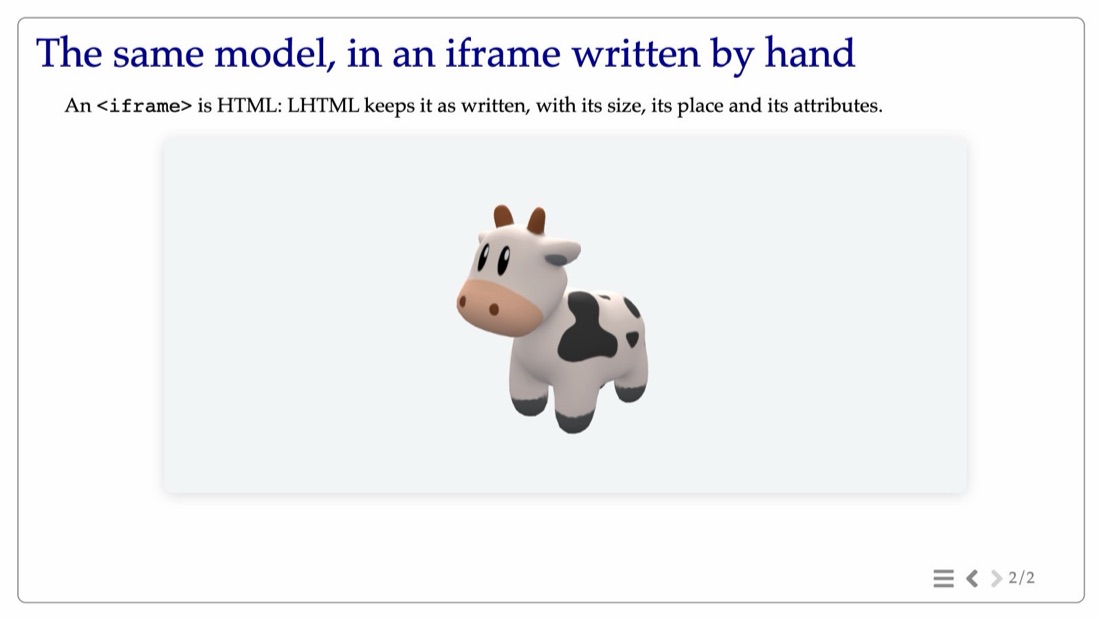
?spin=0: the model waits for the mouse.- The address carries settings: the viewer reads
?spin=0withnew URLSearchParams(location.search)and does not turn the model by itself. - Write the sizes and
displayin the<style>, not instyle="...": a style written in the tag wins over the@media printrule, and the PDF would show both the frame and the image. - An
<iframe>inside amedia::block is still sized by the layout, asdemo::is. lhtml-site --lintlists the iframes with astyle="..."and suggestsdemo::: it is only a suggestion, to keep the slides consistent.
Your own program in a slide
The same tag shows any web page: a model-viewer of a glTF file, a
WebGL figure of your own, or your C++ code compiled to WebAssembly with
Emscripten. Put the files it builds (index.html, .js, .wasm,
.data) in the assets/ of the slide, and give its settings in the address:
demo::assets/app/index.html?model=spot&play=0
The page reads them with new URLSearchParams(location.search). A demo bigger than the column:
the layout stack gives it the width of the slide, and demo::url[height:600px;] its height.
If it goes wrong
- The frame is empty: open
viewer/index.htmlalone withlhtml-site --serve, and look at the console of the browser (an address of three.js, a file name). - The model is too small, too big or upside down: its size is computed from the file; the
rotation is
model.rotation.x. - The PDF shows an empty frame: the classes
.liveand.still, and the<style>, are missing.
Next: check your slides automatically, then put the talk online.