Themes
The pages say what to show; the theme says how. Change the theme: line in
configure.yaml, rebuild, and the same pages take another form.
The four themes
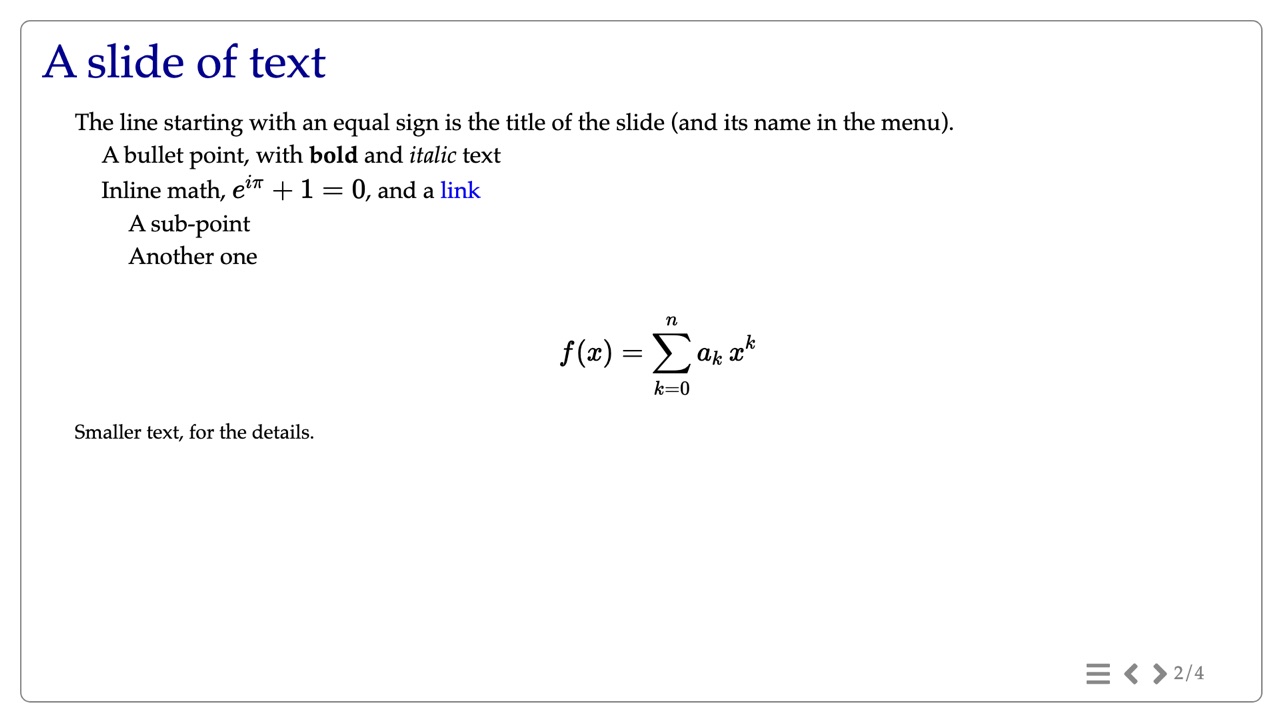
slides: slides in the browser, 1920×1080, the arrow keys to move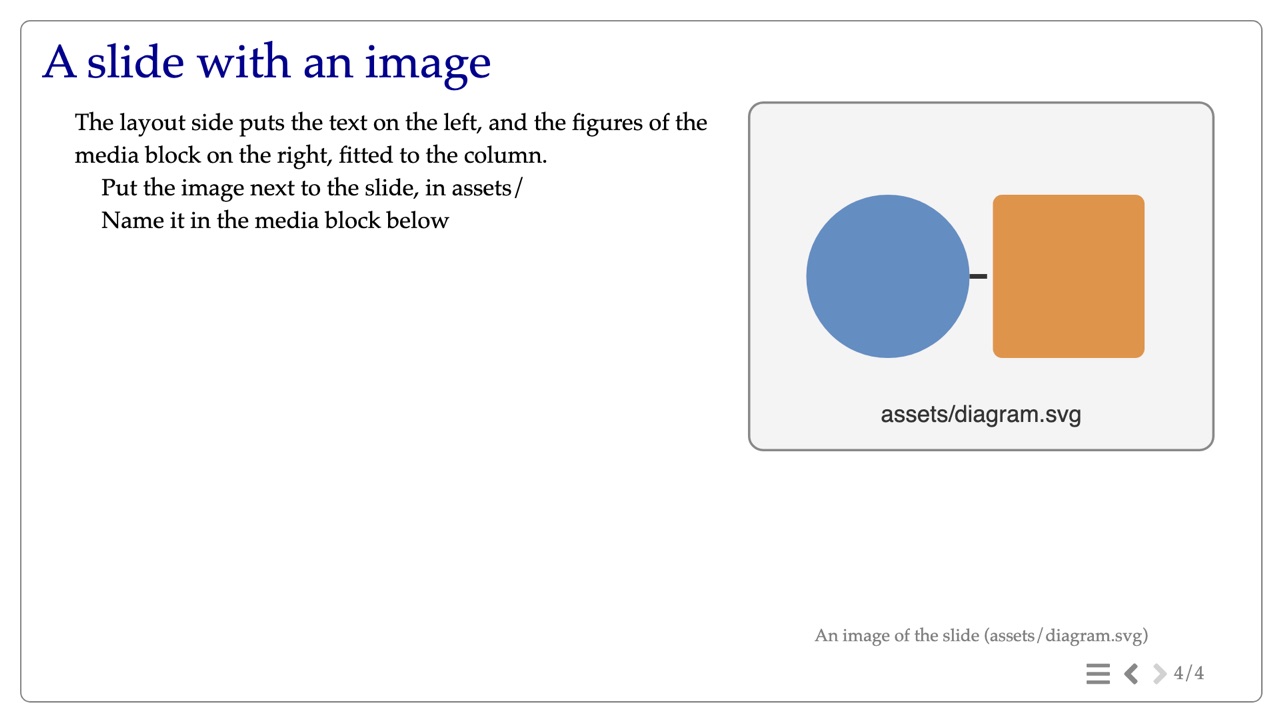
slides-pdf: the same slides as a PDF, and an image of each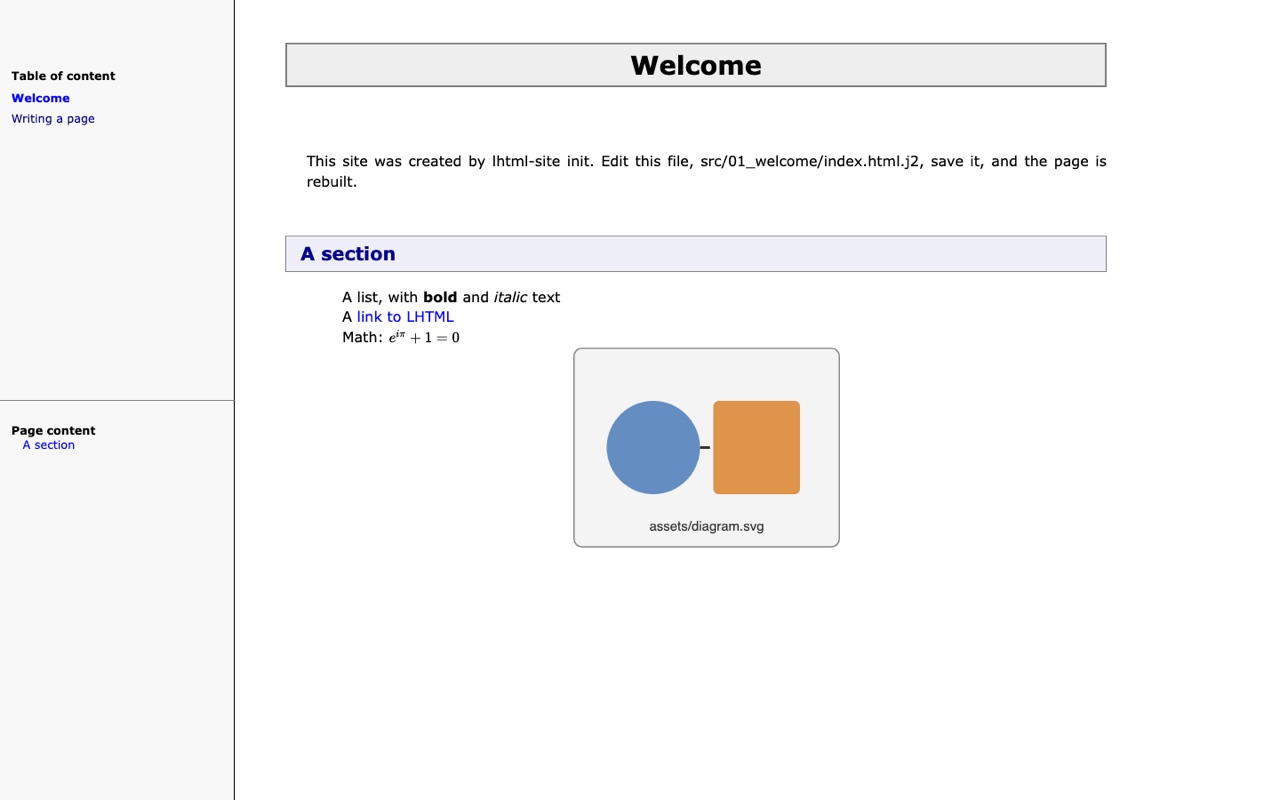
webpage-frame: web pages with a menu, for a course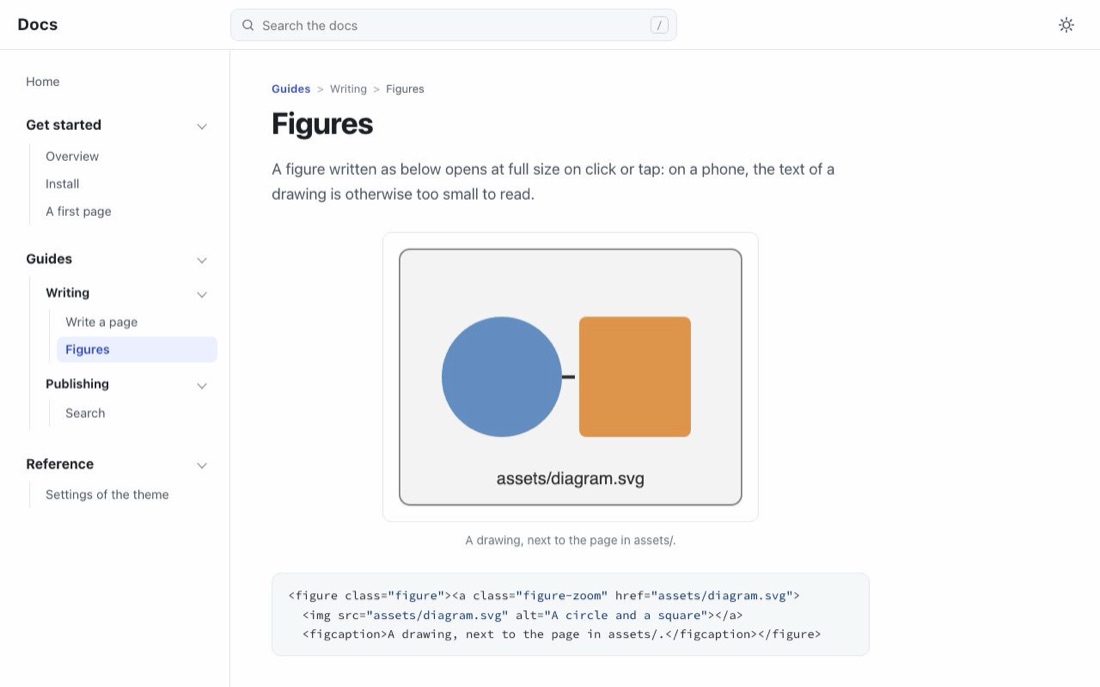
docs: a documentation site with search, like this oneEach picture opens the real result, built from the starters of lhtml-site init by the current lhtml-site. Real courses: Made with LHTML.
| Theme | For | Needs |
|---|---|---|
slides |
Slides in the browser | nothing more |
slides-pdf |
The same slides, as a PDF | Playwright and its Chromium (recipe) |
webpage-frame (default) |
Web pages with a navigation menu: a course | nothing more |
docs |
A documentation site: search, menu by section, "On this page", light and dark | for the search box, a Pagefind index (recipe) |
What the slide themes add
The slide themes come with macros, tags written once in the theme, and layouts, which
place the blocks of a slide for you. A slide chooses its layout in its front matter, the YAML
between --- lines at its very top:
---
layout: side
---
= Forward kinematics

* Each joint angle is set by hand
gap::
* Rotations are interpolated

media::
img::assets/fk.jpg
credit:: Image: Wikimedia Commons ::
::
- Macros:
gap::(a space),small::,center::,cols::andcol::,box::(.good,.bad,.warn,.key),credit::,aside::,media::... - Layouts:
side(text left, figures right;side-sandside-lfor a narrower or wider column),stack(figures below the text),section(a title slide). media::holds the figures that the layout places and sizes: no position or width to write.
The starter slides of lhtml-site init choose their layout another way, with
{% set layout = 'side' %} at the top of the file; both work.
After a build, .structure/design.md lists every macro and layout of the theme.
Change the look (no theme to write)
What you can change depends on the theme:
Setting in configure.yaml |
slides, slides-pdf |
webpage-frame |
docs |
|---|---|---|---|
design: macros |
yes, with their CSS | the tag only: its css is not loaded |
the tag only: its css is not loaded |
design: tokens (sizes, colors) |
yes | no effect | no effect |
keywords: cssAbs: your stylesheet |
yes | yes | no: use docs: css: |
keywords: docs: css: your stylesheet |
no | no | yes |
Macros are LHTML: they work in .html.j2 pages, not in Markdown pages (.md.j2). In
webpage-frame and docs, give the class of a macro its style in your own stylesheet.
Slides: tokens and macros. The slide themes read their sizes and colors from named tokens,
and you can add macros of your own. In configure.yaml (a part of these lines is already there,
behind a #):
design:
  tokens:
    font: {small: 80%}          # small:: text a little smaller
    space: {m: 30px}            # gap:: a little taller
    color: {muted: '#555'}      # muted:: text darker
  macros:
    note:                       # a new macro: note:: text ::
      class: note
      css: '.note { color: #c0392b; font-style: italic; }'
      doc: 'A remark in red: note:: text ::'
They are added to those of the theme; after a build, .structure/design.md lists all of them.
Slides and webpage-frame: your stylesheet. Write src/assets/my.css and name it, from the
root of the site:
keywords:
  cssAbs: [assets/my.css]
It is loaded after the theme's stylesheets, so its rules win.
docs: your stylesheet. Every color and size of the theme is a CSS variable (--accent,
--bg, --text...), so a few lines change its look; this site does just that. For example, to
change the accent color in light and dark modes, write src/assets/my.css:
:root { --accent: #8a2be2; }
:root[data-theme="dark"] { --accent: #b48cff; }
and add to configure.yaml:
keywords:
  docs:
    css: [assets/my.css]
The theme's other settings (name, logo, links) are in the docs theme.
Write your own theme
When the settings above are not enough, start from a copy: copy a theme of lhtml-site into your
project (they are in the directory themes/ of the generator; lhtml-site doctor prints where
the generator is), change its files, and point theme: at that directory.
Or write one from scratch. A theme is a directory with a theme.yaml and a Jinja template:
my-theme/
  theme.yaml
  template/base.html
  css/my.css
# my-theme/theme.yaml
template: 'theme/template/base.html'   # the template that wraps each page
content_block: 'content'               # the block the page fills
<!-- my-theme/template/base.html -->
<!DOCTYPE html>
<html>
<head>
  <meta charset="utf-8">
  <title>{{ page.title }}</title>
  <link rel="stylesheet" href="{{ pathToRoot }}theme/css/my.css">
</head>
<body>
  <main>{% block content %}{% endblock %}</main>
</body>
</html>
and in configure.yaml: theme: 'my-theme/'. The theme is copied into the site as theme/.
What a theme can declare (a menu, the size of a page, a 404 page) and the variables a template
receives are in the lhtml-site reference;
the docs theme page describes a complete theme, file
by file.